🎉 Now Available for 1.21+
Ultimate
Shader Packs Bundle
Minecraft shaders are the perfect way to add stunning graphics and realistic lighting effects to your game. With various shader packs, you can customize your game to suit your preferences and create an immersive and visually appealing world.
See what's included in this bundle

Sildur's Shaders
Created by SildurFX
Complementary Shaders
Created by EminGTR
Super Duper Vanilla Shaders
Created by eldeston
Voyager Shaders
Created by symbiome67
CaptTatsu’s BSL Shaders
Created by CaptTatsu
AstraLex Shaders
Created by LexBoosT
Chocapic13’s Shaders
Created by Choca_13
MakeUp Ultra Fast Shaders
Created by XavierFST
Beyond Belief Shaders
Created by Dakotah2468
ProjectLUMA Shaders
Created by DeDelner
Exposa Unique Shaders
Created by negorolxvv
Wisdom Shaders
Created by Bobcao3

PROMOTION

PROMOTION

Easy To Install
We offer a well documented installation guide on our website. We break it down step by step to make sure you sucessfully get shaders installed!

Regular Updates
We release monthly updates, we add new shader packs to our bundle, as well as update out of date shader packs that may not have been fully supported on the latest version.

Safe Download
Our downloads are only from the official developer, so you can be sure they are secure. No modifications or edits are made to the files.
Ultimate Shaders Bundle
Download button will appear in 5 seconds

Minecraft Server Hosting
Powerful servers with high-end enterprise hardware that will guarantee high performance and reliability for your community.
Installing Shaders
Minecraft shaders are the perfect way to add stunning graphics and realistic lighting effects to your game. With various shader packs, you can customize your game to suit your preferences and create an immersive and visually appealing world.

Step #2
Run Optifine.jar
When you double click on the OptiFine,jar download file, you should see this menu. Please select Install.
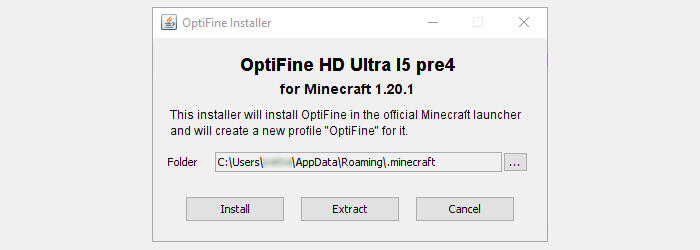
If this menu does not open for you, please install the latest Java Runtime.
Step #3
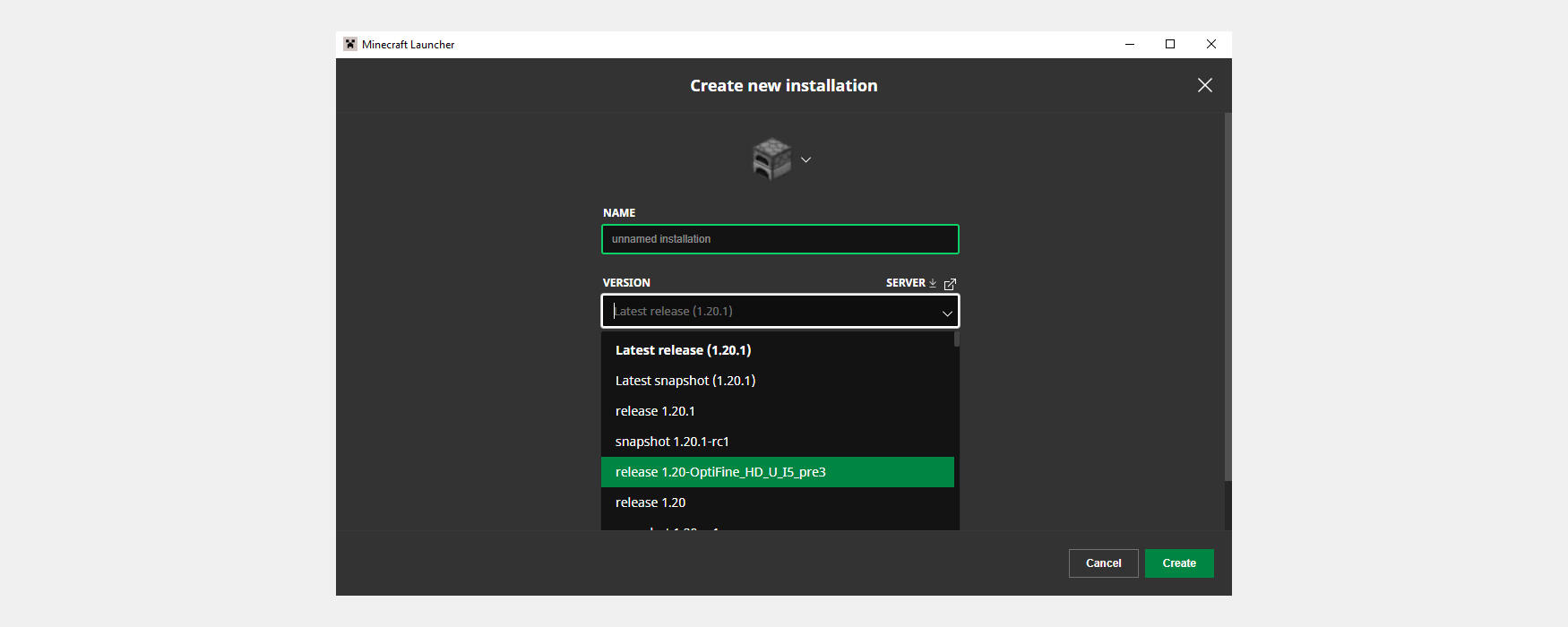
Create a new Installation
Go to your Minecraft Launcher and select the "Installations" tab at the top.
Create a new installation and search for the Optifine installation from the dropdown.
Step #4
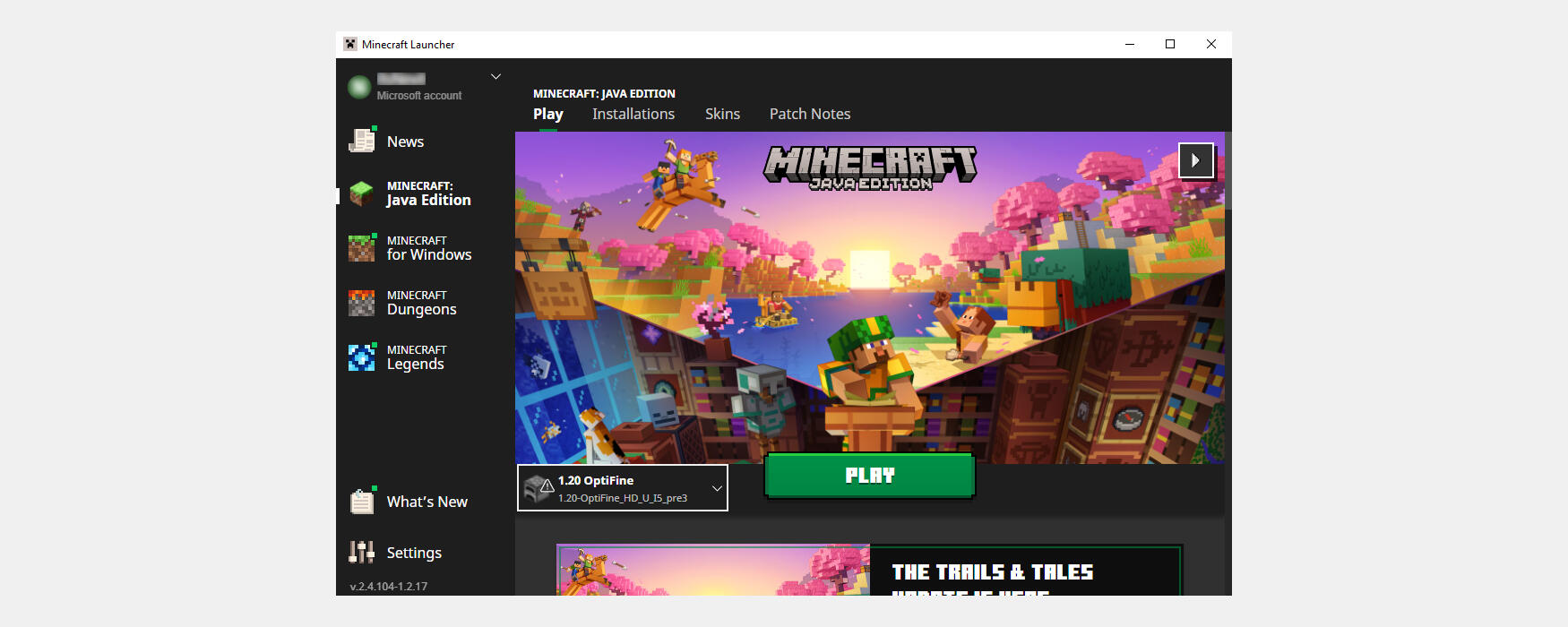
Launch the game!
Now simply select the OptiFine installation from the dropdown and click play!
Step #5
Download Shader Packs Bundle
If you haven't already downloaded our shader packs bundle, please click here!
Step #6
Go to Minecraft's directory
Press Windows Key + R, it should open a menu called "Run". Type %appdata% and click "ok".
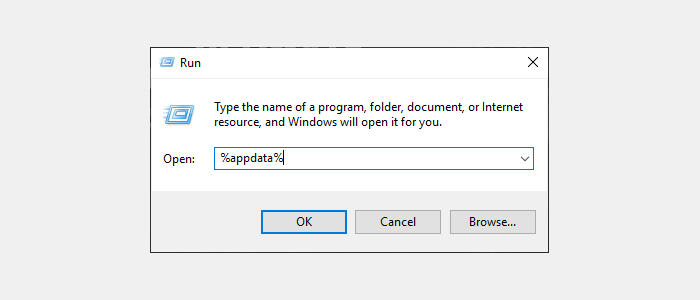
Once you click "ok" open the ".minecraft" folder.
Step #7
Installing Shaders bundle
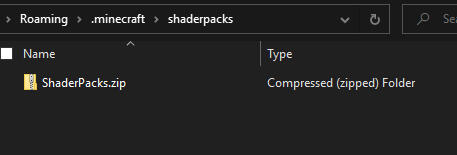
Find the "shaderpacks" folder within ".minecraft". If it does not yet exsist, please create one.
Upload your shaderpacks.zip file into that folder directly.
Step #8
Extracting The Bundle
Once the ShaderPacks.zip file is in the "shaderpacks" folder,
right click on the file and select "Extract All".